
How to Password Protect a Shared PDF
You have a PDF you need to share — a contract, a financial report, a client deliverable, a confidential proposal. You don't want just anyone opening it. You want a password between the file and whoever you send it to.
There are three ways to do this, and they protect different things. Choosing the wrong one means either false security or unnecessary friction. Here's how each works and when to use it.
The Three Approaches
- Link-based password protection — Put a password gate on the hosted page
- PDF-level encryption — Lock the file itself with a password
- Cloud storage permissions — Restrict who can access the link
Each one solves a different problem. Most people sharing PDFs professionally need approach 1 and don't know it exists.
Approach 1: Link-Based Password Protection
Host the PDF on a platform that puts a password gate between the link and the document viewer. The recipient clicks the link, sees a password prompt, enters the password, and then views the PDF in a clean reader — all in the browser.
How It Works
- Upload your PDF to a hosting platform
- Enable password protection in the project settings
- Set the password
- Share the link
- The recipient opens the link, enters the password, and views the document
No downloading. No separate password delivery. No cloud storage UI. Just a password screen followed by the document.
What This Protects
Access to the hosted document. The password controls who can view the content through the link. Combine it with disabled downloads and you control both viewing and possession.
Why This Approach Works Best for Professional Sharing
- The password and the document are at the same URL. You share one link. The recipient handles the rest. No "check your text messages for the password" dance.
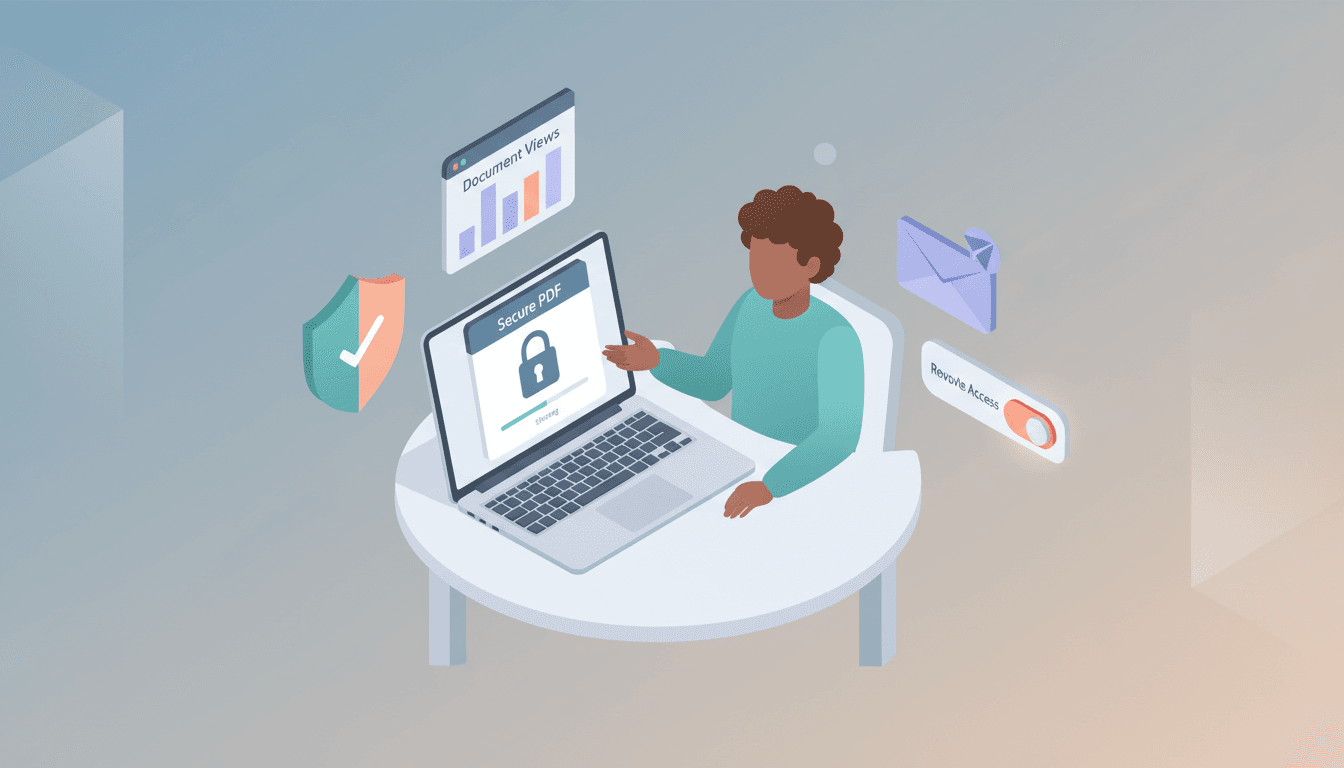
- You can change the password anytime. Revoke access instantly by changing it. Anyone with the old password gets locked out.
- The viewer experience is clean. No cloud storage chrome, no ads, no download buttons (if you disable downloads).
- You get analytics. See who accessed it, when, and how they found the link.
- You can stack security layers. Password protection + email gate = the viewer enters their email AND a password before seeing the document. You know who accessed it and they need authorization to do it.
Setting Up Password Protection with HIRO host
HIRO host's password protection works exactly this way. Here's the setup:
- Create a project at hiro.host and upload your PDF
- Go to project settings and toggle Password Protection on
- Set your password — it's encrypted with bcrypt (the same algorithm banks use for password storage)
- Share the link — visitors see a clean password prompt before the document loads
When someone enters the correct password, they get a session token that lasts 7 days. They won't need to re-enter it on repeat visits within that window.
Combine with email collection: Turn on the email gate alongside password protection. Now visitors enter their email AND the password. You build a list of exactly who accessed the document, and unauthorized viewers are blocked.
Analytics tell you what happened: After sharing, check the analytics dashboard to see:
- How many people viewed the document
- How many entered the password successfully
- What the conversion rate is (useful for spotting password issues — if 50 people visit but only 2 get in, the password might not be reaching them)
- Where visitors came from (referrers)
- Daily view trends over the last 30 days
Approach 2: PDF-Level Encryption
Embed a password inside the PDF file so it can't be opened without it.
How to Do It
Using Adobe Acrobat:
- Open the PDF in Acrobat
- Go to File > Protect Using Password
- Choose Viewing (requires password to open) or Editing (requires password to edit)
- Set the password
- Save the file
Using Preview on Mac:
- Open the PDF in Preview
- Go to File > Export
- Check Encrypt
- Set the password
- Save
Using free online tools (Smallpdf, iLovePDF):
- Upload the PDF to the tool's website
- Set a password
- Download the encrypted file
What This Protects
The file itself. If someone gets the PDF — from email, a USB drive, a download link, wherever — they need the password to open it.
The Problems
- You still have to share the password separately. You email the PDF, then text the password. Or you put both in the same email, which defeats the purpose.
- No way to revoke access. Once someone has the password and the file, they have it forever. You can't "un-share" a file that's already on their device.
- No analytics. You don't know if they opened it, when, or how many times.
- Password gets passed around. The recipient shares the password with their colleague. Now five people have access instead of one.
- Friction for the recipient. They download the file, get prompted for a password, dig through their messages to find it, type it in. If they close the file and reopen it, some viewers ask for the password again.
When to Use It
When you're sending the file via email or physical media and the file itself needs to be locked — regardless of where it ends up. Think: legal documents shared over email where the recipient stores the file locally.
Approach 3: Cloud Storage Permissions
Use Google Drive, Dropbox, or OneDrive sharing settings to control who can access the file.
How to Do It
Google Drive:
- Upload the PDF
- Right-click > Share
- Add specific email addresses, or set to Restricted
- Share the link
Dropbox (paid plans):
- Upload the PDF
- Click Share > Link settings
- Set a password for the link
- Set an expiration date (optional)
- Share the link
What This Protects
Access to the link. With Google Drive, only people you've explicitly added can open it. With Dropbox (paid), anyone with the link also needs the password.
The Problems
- Google Drive doesn't support link passwords. You can restrict by email address, but the recipient needs a Google account. Not ideal for clients or external partners.
- Dropbox link passwords are a paid feature. The free tier doesn't offer it.
- The viewer experience is cluttered. Your confidential document is wrapped in Drive or Dropbox UI, with download buttons, sharing options, and file browser chrome.
- No analytics beyond Google Drive's basic "last viewed" timestamp.
- Permission management is confusing. "Anyone with the link" vs. "Restricted" vs. "Anyone in your organization" — get it wrong and either nobody can open it or everyone can.
When to Use It
When you're sharing with specific people who have accounts on the same platform, especially for internal team sharing. Not ideal for external sharing where you want a clean, professional experience.
Comparison Table
| Link Password (HIRO host) | PDF Encryption | Cloud Permissions | |
|---|---|---|---|
| Password on the viewing link | Yes | No | Dropbox paid only |
| Password on the file itself | No (on the page) | Yes | No |
| Revoke access after sharing | Yes (change password) | No | Yes |
| Analytics | Yes (views, visitors, referrers) | No | Minimal |
| Email collection | Yes | No | No |
| Recipient needs an account | No | No | Often (Google, Dropbox) |
| Clean viewing experience | Yes | Depends on viewer | No (platform UI) |
| Can disable downloads | Yes | No | No |
| Can change password later | Yes | No (re-encrypt file) | Yes |
Common Scenarios and What to Use
"I'm emailing a contract and want the file locked." Use PDF-level encryption. The file travels through email and might get forwarded — the password stays with the file.
"I'm sharing a financial report with my team on Google Workspace." Use Google Drive permissions. Everyone has Google accounts and you can control access by email address.
"I'm sending a proposal to a client and want to know if they opened it." Use link-based password protection (HIRO host). You get a clean viewer, analytics, and the ability to revoke access by changing the password.
"I'm sharing a pitch deck with investors and want to collect their contact info." Use HIRO host with both password protection and email gate. You control access and build a list of who viewed the deck.
"I'm sharing a confidential report and want maximum security." Layer the approaches: encrypt the PDF itself, host it on HIRO host with password protection and email gating, and disable downloads. Three layers: file-level encryption, link-level password, and identity verification via email.
The Real Question Isn't "How" — It's "What Are You Protecting Against?"
- Against someone who finds the file on a lost USB drive? PDF encryption.
- Against someone guessing the link? Link-based password.
- Against someone who has the link but shouldn't see the content? Password protection + email gate.
- Against someone who already has the password and is sharing it? Change the password and check analytics for unusual access patterns.
Most people sharing PDFs professionally need link-based password protection. It's the only approach that combines access control, analytics, and a clean viewing experience in one step.
Password protect your next shared PDF. Get started at hiro.host
Related articles
How to Share Your Resume on Your Own Domain (And Why It Matters in 2026)
Stop sending PDF attachments that disappear in inboxes. Share your resume on a branded link you control -with view tracking, password protection, and instant updates.

How to Share a Figma File on Your Own Domain (2026 Guide)
Stop sending raw Figma links to clients. Learn how to publish your designs on a branded domain with password protection, email capture, and view analytics — in under two minutes.